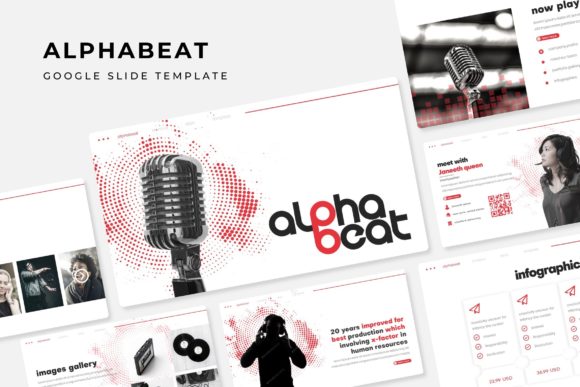
Alphabeat Google Slide Template: An Objective Guide for Presentation Builders
When you need to assemble a professional presentation quickly, the choice of template can significantly influence both the visual outcome and the time invested. The Alphabeat Google Slide Template is one such option that appears frequently in searches for versatile, modern slide decks. This article provides a balanced evaluation of what this template offers, where it excels, and when you might want to look elsewhere. The goal is to help you decide whether Alphabeat aligns with your specific presentation goals.
What Is the Alphabeat Google Slide Template?
At its core, the Alphabeat Google Slide Template is a large-scale presentation package designed to help users create slides with a consistent, polished look. According to the feature set, it includes 150 total slides distributed across 5 premade color variations, meaning you get 30 slides for each color theme. The template is built around Google Slides but also comes as 5 PPTX files in widescreen format, making it usable in both Google Slides and Microsoft PowerPoint.
Key structural elements include section break slides, gallery and portfolio slides, and handcrafted infographics. The graphics are described as pixel-perfect illustrations, and the template operates on master slides, which allow for global changes to fonts, colors, and layouts. Placeholder images are set up for drag-and-drop replacement, and all graphics are resizable and editable. A Readme file and a link to download the required free fonts are included.
It is important to note that photographs or pictures shown in previews are for illustration only and are not part of the actual template file. This distinction matters if you are expecting stock imagery to be included.
Why Consider the Alphabeat Template?
Several factors make this template worth evaluating for your next presentation project.
Volume of Content Across Variations
With 150 slides and five distinct color schemes, you are not locked into a single look. Each color variation contains 30 slides, which is enough to build a complete pitch deck, business report, or educational module without running out of layout options. If you need to present to different audiences or maintain brand color flexibility, having five built-in themes simplifies the process.
Built-In Infographics and Section Breaks
The inclusion of handcrafted infographics means you do not have to build data visuals from scratch. Section break slides also help structure longer presentations, providing natural pauses that improve audience comprehension. For someone who values organization and visual flow, these elements reduce design effort.
Editable, Master-Based Architecture
Master slides are a practical feature for consistency. By editing the master, you can change fonts, colors, or background elements across all 30 slides in a color set simultaneously. This is especially useful if you need to adapt the template to existing brand guidelines. The resizable and editable graphics further give you control over sizing and placement without losing resolution.
Cross-Platform Availability
The inclusion of both Google Slides format and 5 PPTX widescreen files means you can work in the environment you prefer. If you collaborate with a team using Google Slides, the template works natively. If you need to deliver a file to someone using PowerPoint, the PPTX files are ready. This dual-format flexibility is a practical advantage.
Tradeoffs and Considerations
While the Alphabeat template offers substantial volume and variety, there are tradeoffs to weigh before committing.
No Included Photography
As noted, photographs in the preview are for illustration only. This means you must source your own images. If your presentation relies heavily on high-quality photography, you will need to budget time to find, edit, and insert suitable pictures. The template provides placeholders, but the final visual impact depends on the images you supply.
Learning Curve with Master Slides
Master slides are powerful, but they require basic understanding of how Google Slides or PowerPoint handles slide masters. If you are unfamiliar with editing the master view, you may accidentally break layouts or struggle to customize the template. However, the included Readme file should help mitigate this, assuming you read it before starting.
30 Slides Per Color Variation
Thirty slides per color scheme is generous for many presentations, but it may be excessive for a short pitch of 10–15 slides. Conversely, for a very large presentation spanning 60–80 slides, you may need to combine color variations or repeat layouts, which could cause slight visual inconsistencies. Consider the length of your planned presentation when evaluating whether 30 slides per theme is enough or too much.
Free Font Dependency
The template relies on free fonts that you must download and install. While the download link is provided, font rendering can vary depending on your operating system and software version. If the fonts do not load correctly, your presentation may look different than intended. Testing on the target display device is recommended.
Expectations When Using the Template
Based on the features listed, here is what you can reasonably expect when you download and start working with Alphabeat.
- Consistent layouts across all slides within a color variation, thanks to the master slide structure.
- Drag-and-drop image placement via picture placeholders, which speeds up photo integration.
- Pixel-perfect illustrations that should remain sharp even when resized, as long as you avoid extreme scaling beyond the original design intent.
- Multiple slide types including portfolio galleries and section breaks, giving you variety without having to invent new layouts.
- A straightforward customization process for colors, text, and basic graphic elements, provided you stick to the provided color variations or use the master to apply your own palette.
The template is not a fully automated presentation generator. You will still need to populate content, adjust text to fit your message, and source your own photography. What it provides is a structural and visual foundation that saves time compared to starting from a blank slide.
Where Alphabeat Is a Strong Fit
Certain presentation scenarios align particularly well with what this template offers.
Business Pitches and Client Proposals
If you need to present a professional, visually consistent proposal to a client, having 30 slides with built-in portfolio and infographic layouts helps you communicate services, case studies, and data clearly. The five color options allow you to match or complement a client’s brand identity.
Educational and Training Modules
Section break slides and infographics are valuable in educational settings where you want to segment topics and illustrate key points. The template’s clean, modern style supports readability, which is important for audience retention.
Portfolio or Creative Showcases
The inclusion of gallery and portfolio slides makes this template a practical choice for designers, photographers, or agencies who need to present visual work. The picture placeholders are designed for easy image swapping, so showcasing multiple projects becomes efficient.
Teams That Need Cross-Format Compatibility
If your team uses a mix of Google Slides and PowerPoint, the dual-format delivery (GSlides plus 5 PPTX files) reduces friction. You can collaborate in Google Slides and export to PPTX for final delivery without rework.
When Alternatives May Be Worth Considering
No single template suits every need. Here are situations where you might benefit from looking at other options.
You Require Built-In Stock Photography
If your presentation depends on high-quality, royalty-free images integrated directly into the template, Alphabeat is not the right choice. Look for templates that include image libraries or consider using a template from a platform that offers bundled stock photography.
You Need Extensive Data Visualization Beyond Infographics
The handcrafted infographics in Alphabeat are useful for basic charts and diagrams, but they may not cover complex data visualization needs such as interactive charts, advanced graphs, or dynamic data linking. For heavy data presentations, a specialized dashboard template or a tool like PowerPoint’s native chart builder might serve you better.
You Prefer a Minimalist or Highly Unique Design
Alphabeat follows a modern, clean aesthetic, which is widely applicable but not highly distinctive. If your brand or presentation requires a minimalist layout with very little decoration, or conversely a highly artistic custom design, this template may feel too structured or conventional.
You Are Working with a Very Tight Deadline
While the template saves time, you still need to install fonts, source images, and customize content. If you have extremely limited time, a simpler template with fewer slides and built-in imagery might allow faster completion. The 150-slide volume could also be overwhelming to navigate under time pressure.
Practical Insights for Your Decision
Here are actionable points to help you decide whether the Alphabeat Google Slide Template fits your needs.
- Assess your presentation length. If your deck will be between 10 and 30 slides, a single color variation is sufficient. If larger, consider whether you can comfortably mix color themes without losing cohesion.
- Plan your image sourcing. Since photographs are not included, identify where you will obtain images. Allocate time to find, edit, and insert them using the placeholders.
- Test font installation early. Download the free fonts and install them before you start building slides. Verify that they render correctly on your computer and on the device you will use for presentation.
- Learn master slide basics. Even a 10-minute tutorial on editing slide masters in Google Slides or PowerPoint will help you avoid common pitfalls and make global changes efficiently.
- Evaluate the five color variations against your brand. If one of the five colors closely matches your brand palette, customization will be minimal. If not, plan to modify the master colors, which is straightforward but requires a few extra steps.
Determining Alignment with Your Goals
The Alphabeat template is best suited for users who value structure, variety, and cross-platform compatibility. It provides a strong foundation for professional presentations that require consistent branding, multiple slide types, and clean visuals. If your primary need is a reliable, pre-built framework that lets you focus on content rather than layout design, this template merits serious consideration.
On the other hand, if your project demands unique artistic expression, integrated photography, or advanced data interactivity, you may find the template limiting. In those cases, a more specialized tool or a custom design approach could better meet your requirements.
Ultimately, the decision comes down to your specific context: the length of your presentation, the importance of visual variety, your willingness to source images, and your comfort with master slide editing. By weighing these factors against the features of the Alphabeat Google Slide Template, you can make an informed choice that supports your presentation objectives without unnecessary friction.