Segiri Google Slide Template: A Practical Tool for Streamlined Presentation Workflows
Building a presentation from scratch takes time. You need to structure content, design slides, choose colors, and ensure consistency across every page. For professionals, creators, and business owners, that process can eat into hours that could be spent refining the message itself. The Segiri Google Slide Template offers a structured alternative. It is a complete slide system designed to reduce repetitive design work and help you focus on what matters: delivering clear, engaging content.
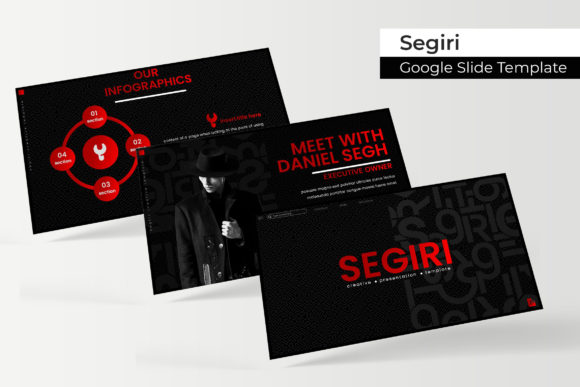
Segiri is not just a collection of slides. It is a modular toolkit built around efficiency. With 150 total slides organized into five premade color variations, it gives you a flexible foundation for a wide range of projects. Each color set contains 30 slides, so you can choose a palette that fits your brand or project theme without starting from zero. The template includes handcrafted infographics, section break slides, gallery and portfolio layouts, resizable graphics, picture placeholders, and pixel-perfect illustrations. Everything is built on master slides, which means you can make global changes quickly without editing each slide individually.
How Segiri Fits Into Your Workflow
The real value of any template lies in how it integrates with the way you work. Segiri was designed to support three distinct phases of a project: preparation, execution, and refinement. Understanding where it fits helps you use it more effectively.
Before the Project: Planning and Structuring
When you are in the early stages of a presentation, you need to map out your narrative, decide on key points, and plan how visuals will support your message. Segiri helps here in two ways. First, the five color variations let you select a visual direction early. If you are pitching to a corporate client, you might choose a neutral, professional palette. For a creative portfolio or internal team update, a bolder color set might work better. Having the choice upfront speeds up decision-making.
Second, the slide library itself can serve as a content outline. Browse the section break slides, portfolio layouts, and infographic options to see what structures are available. This gives you a concrete framework to organize your content around. Instead of abstractly deciding where a chart or image should go, you can see exactly which slide type fits each piece of information.
During the Project: Building and Assembling
This is where Segiri handles the heavy lifting. The template includes 150 slides across 5 PPTX files (each with one color variation), plus the corresponding Google Slides versions. All files are widescreen format, which matches modern display standards. The picture placeholders use a drag-and-drop system. You do not need to resize or crop images manually. Drop your photo or graphic into the placeholder, and it fits automatically. This alone saves significant time when you are working with multiple images.
The handcrafted infographics are another practical asset. Instead of building charts, timelines, or process flows from scratch, you can use the prebuilt graphics and customize them. Edit the text, adjust the colors, or rearrange elements. Because all graphics are resizable and editable, you maintain full control over the final look. The pixel-perfect illustrations ensure that your slides appear crisp on any screen, whether you are presenting in a conference room or sharing a PDF.
Section break slides serve as natural dividers between topics. When you are presenting longer content, these slides help the audience follow the shift in focus. They also give you a moment to pause, transition, or reset the room’s attention. For portfolio or gallery slides, the grid and layout options let you showcase work, products, or team members in a clean, professional way.
After the Project: Refinement and Reuse
Once your first draft is built, Segiri makes refinements easy. Because the template is based on master slides, you can update fonts, colors, or backgrounds across the entire deck in a few clicks. This is especially useful when you need to align the presentation with brand guidelines or when a client requests a color change late in the process.
The five color variations also support long-term reuse. If you regularly create presentations for different clients, departments, or events, you can treat each color set as a separate brand kit. Keep the professional palette for external proposals and the creative palette for internal brainstorming sessions. Since each color variation comes as a separate PPTX file, you can save them as dedicated templates and pull them into future projects without rework.
Interacting with Other Tools and Assets
Segiri is designed to work within the broader ecosystem of tools you already use. The template comes as 5 PPTX files, which means it opens directly in Microsoft PowerPoint. But it is also built for Google Slides, which is where many professionals, educators, and freelancers collaborate. The drag-and-drop picture placeholders and master slide functionality behave consistently across both platforms.
If you use design tools like Canva, Adobe Illustrator, or Figma, the resizable graphics and illustrations can be exported or modified further. However, the template is self-contained enough that you may not need additional design software at all. The included fonts are free to download, and a link to them is provided in the Readme First file. This eliminates the common bottleneck of hunting down licensed fonts or dealing with missing typefaces when sharing files with colleagues.
For teams that collaborate remotely, the Google Slides compatibility is a clear advantage. You can share a copy of the template with your team, assign slides to different people, and work in real time. The master slides ensure that even if multiple people edit the deck, the design stays consistent. This reduces the back-and-forth that often happens when presentations are assembled collaboratively.
Practical Implementation Tips
To get the most out of Segiri, treat it as a system rather than a one-time asset. Here are a few process-oriented ways to integrate it into your routine.
Choose Your Color Variation First
Before you add any content, open each of the five PPTX files and review the color variations. Pick the one that matches your brand, your client’s guidelines, or the mood of the presentation. Stick with that file for the entire build. If you later need a different palette, you can copy and paste slides into another color set, but starting with the right one saves rework.
Use Section Breaks as Milestones
When mapping out your presentation, insert section break slides at natural transitions: after the introduction, before a case study, or at the start of a new topic. This helps you control pacing and gives the audience visual cues that the narrative is shifting. It also makes the editing process easier because you can move entire sections by moving the break slide.
Leverage the Infographics for Data
If your presentation includes data points, timelines, or processes, use the handcrafted infographic slides rather than building new charts from scratch. The infographics are designed to be clear and visually balanced. Customize the text and colors to match your data, but keep the layout intact. This maintains consistency and ensures high visual quality without extra design time.
Plan for Image Placement
The picture placeholders are one of the most time-saving features. When you gather your images before building the deck, note which slides will use placeholders. Drag your photos in as you go rather than editing each slide later. This keeps your workflow linear and reduces the chance of misalignment or sizing issues.
Save a Master Copy
After you finish your presentation, save a clean copy of the original template file with nothing modified. This gives you a reusable starting point for the next project. Over time, you will build a library of color-specific templates that you can pull from instantly.
Factors to Consider for Smooth Integration
Preparation matters. Before you start, download and install the free fonts listed in the Readme First file. If you skip this step, your text may display with fallback fonts, which can shift layout and spacing. The template itself is built with master slides, so font changes are easy to apply globally, but starting with the correct fonts avoids unnecessary troubleshooting.
Compatibility is straightforward. The PPTX files work with PowerPoint 2016 and newer, as well as with Google Slides. If you are using an older version of PowerPoint, check that the master slide features render correctly. Most users will have no issues, but it is worth verifying if your organization uses legacy software.
Usability is where Segiri shines. The drag-and-drop placeholders, resizable graphics, and prebuilt infographics mean you do not need advanced design skills to produce professional slides. The template is organized, so you can find the slide type you need quickly. The gallery and portfolio slides are particularly useful for freelancers and small business owners who frequently showcase work to potential clients.
Long-Term Value and Consistency
Consistency is often the hardest thing to maintain in a presentation workflow. When you build slides from scratch, it is easy to drift from your original design choices. Different font sizes, mismatched colors, and inconsistent spacing creep in. Segiri eliminates this problem by providing a unified design system. Every slide in the template follows the same visual rules. As long as you stay within the chosen color variation, your deck will look cohesive from start to finish.
The five color variations also support consistency across multiple presentations. If you create quarterly reports for the same client, you can use the same color set each time. Your audience will recognize the visual language, which builds familiarity and trust. For internal teams, using a consistent template reduces the time spent on design review and approval.
Final Observations on Workflow Fit
Segiri Google Slide Template is not a magic solution that writes your content or makes decisions for you. What it does is remove the friction of design and layout so you can focus on the substance of your presentation. For marketers preparing campaign pitches, educators building course materials, entrepreneurs crafting investor decks, or freelancers creating client proposals, the practical benefit is the same: less time formatting, more time communicating.
The 150 slides across five color variations give you room to grow. You can use the same template for multiple projects, each time selecting the palette that fits. The handcrafted infographics, section breaks, and portfolio layouts cover the most common presentation needs without feeling generic. And because the files are compatible with both PowerPoint and Google Slides, they integrate into whatever workflow your team or client uses.
If you are looking for a way to streamline your presentation process, Segiri offers a structured, reusable foundation. Choose your color variation, drop in your content, and let the template handle the visual consistency. The result is a professional presentation built faster, with fewer distractions, and with more time left to refine your message.