How to Create Stunning Holiday Promotions with New Year and Christmas Flyer Templates
Holiday marketing is one of the most competitive yet rewarding opportunities for businesses, event organizers, and creatives. Whether you are planning a New Year's Eve gala, a Christmas celebration sale, or a festive family gathering, the visual invitation or promotional flyer you use can make all the difference. In this article, we explore how you can leverage fully editable New Year celebration poster templates and Merry Christmas flyer templates to produce professional, customized designs in minutes—even if you have no prior graphic design experience. We will cover everything from understanding template structure to editing text, replacing photos, and choosing the right file format for your needs.
Why Use a Pre-Designed Holiday Flyer Template?
Creating a high-quality flyer from scratch requires time, skill, and access to professional software. For most small business owners, event planners, and community organizers, this is not a practical option. Pre-designed templates solve this problem by offering a ready-made layout that you can personalize with your own text, images, and branding. The best templates are fully editable, meaning every element—from the headline to the background layer—can be modified to suit your specific message.
Templates designed for Christmas and New Year celebrations are particularly popular because they capture the festive spirit with seasonal colors, typography, and graphics. A well-designed template helps you maintain visual consistency across your marketing materials while saving hours of design work. Moreover, because these templates are built in Adobe Photoshop (PSD format), they preserve high resolution and precise layer organization, ensuring your final output looks crisp whether printed or shared digitally.
Understanding the Anatomy of a Fully Editable Holiday Flyer Template
Before you start editing, it helps to understand what makes a template truly editable and professional. A typical high-quality Christmas or New Year flyer template includes several key components:
Layer Structure and Organization
Professional templates come with well-named, grouped layers. For example, you might find folders labeled "Background," "Text Layers," "Images," and "Decorations." This organization allows you to toggle visibility, rearrange elements, and make targeted edits without accidentally moving something you intended to keep. Look for templates that explicitly mention "organized layers" in their description—this indicates the designer has put thought into usability.
Resolution and Dimensions
A standard flyer template often measures 2000 x 3000 pixels at 300 dpi (dots per inch). This resolution is ideal for both print and digital use. At 300 dpi, your flyer will print clearly at roughly 6.67 x 10 inches, which fits a typical poster or flyer size. The 4:6 aspect ratio is also friendly for social media posts and digital sharing. Always check the resolution before purchasing—templates with lower dpi may look pixelated when printed.
Color Mode: RGB vs. CMYK
Most editable PSD templates use RGB color mode, which is standard for digital screens. If you plan to print your flyer professionally, you may want to convert the file to CMYK to ensure color accuracy. However, many modern print shops accept RGB files, so this is not always necessary. The template description usually specifies the color mode, so you know what to expect.
Fonts and Text Layers
One of the most powerful features of an editable template is the ability to change any text using the Text tool in Photoshop. Templates often use popular free or premium fonts, and the download package usually includes a help file with font download links. You can select any text layer, highlight the existing wording, and type your own message. If you prefer a different font, you can change the font family directly in Photoshop—just ensure you have the new font installed on your system.
Step-by-Step Guide to Editing Your Christmas or New Year Flyer Template
Editing a PSD template is straightforward once you understand the workflow. Below is a practical guide that covers the essential steps, from opening the file to exporting the final version.
Step 1: Open the PSD File in Adobe Photoshop
First, ensure you have Adobe Photoshop installed (any relatively recent version will work, including Photoshop CC, CS6, or later). Double-click the PSD file to open it. If you see a font warning dialog, simply click "OK"—you can resolve missing fonts later by installing them from the provided links or substituting with your own.
Step 2: Navigate the Layers Panel
Take a moment to familiarize yourself with the Layers panel (usually on the right side of the screen). Look for text layers, image placeholders, and background groups. If the template is well-organized, you will see clear naming like "Title Text," "Date Text," "Photo Placeholder," and "Background Layer." You can hide or show layers using the eye icon next to each layer.
Step 3: Replace the Placeholder Photo
Most templates include a sample photo that you can replace with your own image. To do this:
- Locate the image layer or group (often labeled "Photo" or "Image Placeholder").
- Right-click the layer thumbnail and choose "Edit Contents" or simply select the layer and use the "Place Embedded" command from the File menu.
- Navigate to your own photo file, select it, and click "Place."
- Resize and reposition the image as needed using the Free Transform tool (Ctrl+T or Cmd+T).
- Press Enter to confirm the placement.
This process gives you a completely customized look while retaining the template's composition and design harmony.
Step 4: Edit the Text Layers
To change any text, select the Text tool (the "T" icon in the toolbar), then click directly on the text you want to edit in the document. You can highlight the existing text and type your own. Use the Character panel (Window > Character) to adjust font family, size, color, tracking, and other typography settings. Remember that you can also change the font entirely if you prefer a different style—just select the text layer and choose a new font from the drop-down menu.
Step 5: Adjust Colors and Design Elements
Many templates use adjustment layers (like Hue/Saturation or Color Balance) that allow you to shift the overall color scheme. For example, you might want to make a Christmas flyer more aligned with your brand colors. You can also directly edit the color of shape layers or text layers by double-clicking the layer thumbnail and selecting a new color from the picker.
Step 6: Save and Export Your Flyer
Once you are satisfied with your edits, you have two main options for saving:
- Save as PSD – This preserves all layers and allows you to make further edits later. Use File > Save As and choose PSD format.
- Export as JPG or PNG – For sharing online or sending to print, use File > Export > Export As and choose JPEG (for smaller file size) or PNG (for higher quality with transparency if needed). The template package often includes a ready JPG sample, but your custom version should be exported fresh.
Practical Applications for Your Holiday Templates
These templates are versatile and can be used for a wide range of purposes beyond a simple party invitation. Understanding the broader applications helps you get more value from a single purchase.
Christmas Celebration Event Invitations
Whether you are hosting a corporate holiday party, a church Christmas dinner, or a family gathering, a festive flyer sets the tone. You can include all event details such as date, time, venue, dress code, and RSVP information. Because the template is fully editable, you can reuse the same design year after year by simply updating the date and text.
Christmas Celebration Sale Promotions
Retailers and e-commerce businesses can use these templates to announce holiday sales, discounts, and special promotions. A well-designed sale flyer draws attention on social media, in email newsletters, and even as in-store signage. The "Christmas Celebration Sale Flyer Template" variety is specifically optimized for this use, with prominent call-to-action areas and price highlight sections.
New Year Party Posters
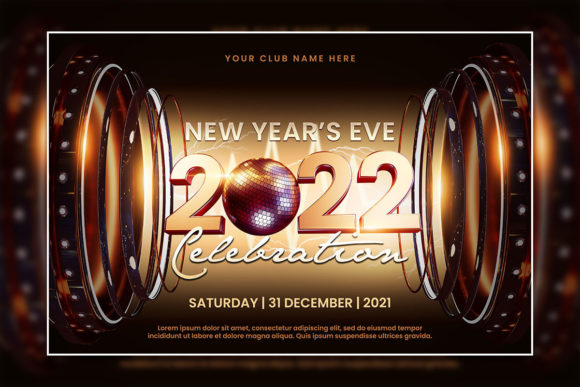
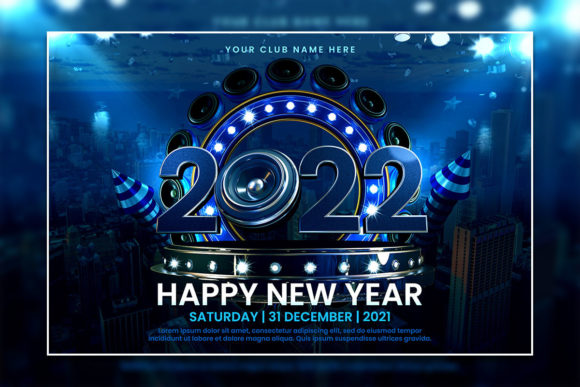
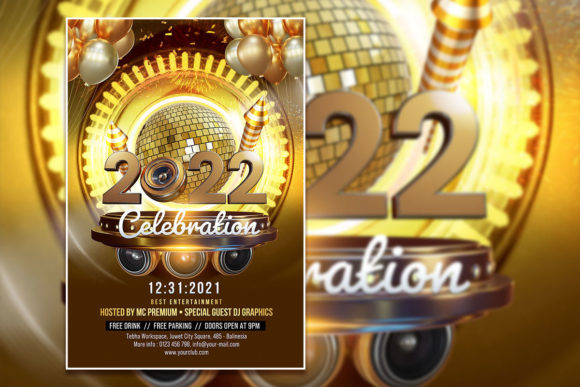
New Year celebration poster templates are ideal for nightclubs, restaurants, community centers, and private event organizers. You can customize the flyer with your event's unique theme—whether it is a black-tie gala, a casual countdown party, or a family-friendly celebration. The poster size (2000 x 3000 pixels) works well for both large format printing and social media cover images.
Digital and Social Media Content
Because the template is offered at 300 dpi and in RGB mode, it is equally suitable for digital use. You can resize the flyer for Instagram stories, Facebook posts, or email headers. Many users find that starting from a print-ready template and then scaling down for digital yields better results than trying to enlarge a small digital graphic.
Common Misunderstandings About Editable Templates
There are a few misconceptions that sometimes prevent people from using PSD templates. Let us clarify them so you can work with confidence.
"I Need Advanced Photoshop Skills to Edit a Template"
This is not true. While some advanced templates may include complex layer effects, the majority of well-designed holiday flyer templates are built for easy editing. If you can use the Text tool and the Place command, you can customize a template. The help file included with the download guides you through any specific steps.
"I Cannot Change the Font"
You absolutely can. The text layers are fully editable, meaning you can select any text and change the font to any typeface installed on your computer. If the original font used in the template is not installed, you will see a warning when opening the file, but you can still proceed and substitute a different font. The help file usually provides download links for the recommended fonts.
"Templates Are Only Useful for Print"
While these templates are designed at print resolution, they work beautifully for digital media. You can export a JPG version and use it across your online channels. The high resolution also means you can crop or zoom into parts of the design without losing quality.
What to Look for When Choosing a Holiday Flyer Template
With many options available, selecting the right template matters. Here are key criteria to consider:
- Editable PSD format – Ensure the template includes layered PSD files, not just flattened images.
- Organized layers – Look for templates that group and label layers clearly.
- High resolution – At least 300 dpi and a minimum of 2000 pixels on the longest side.
- Included help file – A TXT or PDF guide with font links and editing instructions is invaluable.
- Instant download – You should receive the files immediately after purchase.
- License terms – Check whether the template can be used for commercial purposes, such as client projects or business promotions.
Why Instant Download and Ready-to-Use Files Matter
When you are working under a deadline—especially during the busy holiday season—waiting for files to be delivered or customized by a designer is not feasible. Instant download templates allow you to start editing within minutes of purchase. The package typically includes:
- 1 fully editable PSD file
- 1 ready-made JPG file (for quick preview or immediate use)
- 1 TXT help file with font links and editing tips
This combination gives you both flexibility and speed. You can use the JPG as is if you are in a hurry, or spend time customizing the PSD for a more personalized result.
Final Thoughts: Making the Most of Your Holiday Marketing
Festive flyer templates are more than just time-savers—they are strategic tools that help you present your event or promotion professionally. By choosing a fully editable New Year celebration poster template or Merry Christmas flyer template, you gain control over every aspect of the design while maintaining a polished, cohesive look. Whether you are a small business owner, a nonprofit organizer, or an individual planning a holiday gathering, these templates empower you to create materials that stand out.
Remember that the key to a successful flyer is not just the template itself, but how you customize it. Replace the generic photo with your own image to add authenticity, adjust the text to reflect your unique voice, and don't be afraid to experiment with colors and fonts. The template is a starting point—your creativity makes it yours. With a high-quality PSD template, a bit of practice, and the steps outlined in this article, you can produce holiday marketing materials that capture attention and drive results.