Nuansa Power Point Template: A Practical Guide to Streamlining Your Presentation Workflow
Creating a polished, professional presentation often feels like a race against time. You have the content, the data, and the message, but formatting each slide, aligning graphics, and maintaining visual consistency can eat up hours. The Nuansa Power Point Template is designed to eliminate that friction, offering a structured yet flexible foundation that fits directly into your existing workflow. Rather than starting from a blank canvas, you begin with a purpose-built system that handles the heavy lifting of design, leaving you free to focus on your narrative and your audience.
What Nuansa Power Point Template Brings to Your Process
At its core, Nuansa is a comprehensive presentation framework built around versatility and efficiency. With 150 total slides spread across five distinct color variations, each containing 30 slides, the template gives you immediate access to a wide range of layouts without forcing you to adapt to a single aesthetic. This structure means you can select a color palette that matches your brand, your client's identity, or the tone of your specific project, and then build out your slideset without worrying about consistency slipping between slides.
The five premade color variations are not just cosmetic changes. Each variation maintains its own visual harmony, with coordinated accents, backgrounds, and typographic treatments. This matters when you are preparing a pitch deck for a conservative boardroom, a vibrant portfolio for a creative agency, or an educational module for a classroom. You can choose the variation that fits the context and then rely on the underlying structure to keep everything cohesive.
Handcrafted Infographics and Section Breaks
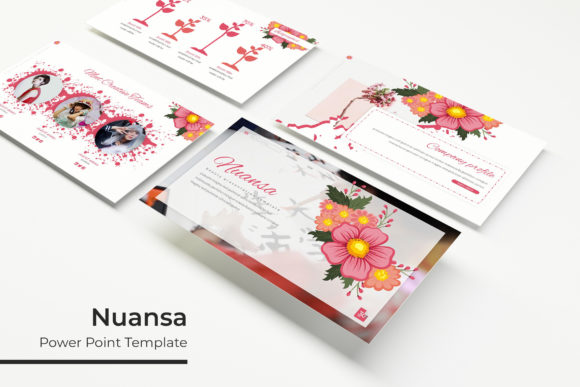
One of the most time-consuming parts of presentation building is creating clear, digestible infographics. Nuansa includes handcrafted infographic slides that are fully editable, so you can swap in your own data points, adjust charts, or modify icons without needing graphic design skills. These infographics are built with pixel-perfect precision, meaning they scale cleanly and maintain their sharpness on any screen or projector.
Section break slides serve a practical function in longer presentations. They act as visual cues for your audience, signaling a shift in topic or a new phase of your story. Instead of a jarring transition, you get a polished divider that reinforces your visual theme and keeps your audience oriented. Whether you are presenting a quarterly review, a project proposal, or a multi-chapter training session, these breaks improve pacing and comprehension.
Where Nuansa Fits in a Real Workflow
Understanding where a template like Nuansa fits into your broader process helps you use it more intentionally. Consider a typical presentation workflow: research and content gathering, outlining, slide creation, design refinement, review, and delivery. Nuansa is most useful during the slide creation and design refinement phases, but its structure also influences earlier and later stages.
Before You Open PowerPoint
When you are planning your presentation, knowing that you have 150 slides across five color variations gives you a clearer sense of what is possible. You can think in terms of slide types rather than individual slides. For example, you might decide that your opening needs a strong gallery or portfolio slide, your middle sections need infographic-heavy layouts, and your closing needs a clean summary slide. This forward planning saves time because you are not hunting for layouts later; you know the template has what you need.
Additionally, because Nuansa is built on master slides, you can set up your own default styles before you begin populating content. Want all headings to use a specific font? Adjust the master slide once, and it propagates across every slide in that variation. This kind of preparation pays off when you are working under tight deadlines.
During Slide Construction
This is where Nuansa shines in practice. The drag-and-drop picture placeholders let you insert images directly into pre-sized frames. No cropping, no resizing, no guesswork. If you have a set of product photos, team headshots, or portfolio images, you can drop them in and they snap into place. This feature alone can shave 30 to 60 minutes off a typical deck, especially if you are working with multiple images.
The resizable and editable graphics mean you are not locked into a fixed layout. If a particular infographic needs an extra data point, you can duplicate the element and adjust it. If a section break needs a different background color, you can change it without breaking the design. This flexibility is critical when clients or stakeholders request last-minute changes. You do not have to rebuild slides from scratch; you simply modify what is already there.
After the Presentation Is Built
Once your slides are assembled, the template supports quality control and consistency checks. Because everything is based on master slides, you can quickly scan through the deck and verify that fonts, colors, and spacing are uniform. If you need to create a second version for a different audience, you can duplicate the file and switch to a different color variation. For example, a single content deck can be adapted for an internal team meeting, a client presentation, and a conference talk, each with its own color palette, without redoing the layout work.
Practical Integration with Other Tools and Assets
Nuansa works well alongside the tools and resources you already use. If you design custom icons or illustrations in vector software, you can import them directly into the template. The pixel-perfect illustrations included in the template are built at high resolution, so they match well with professionally sourced graphics. You can also combine Nuansa with stock photography, brand assets, or data visualization exports from tools like Excel or Google Sheets.
The template is delivered as 5 PPTX files, each representing a different color variation. This format gives you the freedom to work entirely within PowerPoint, no external plugins required. If you collaborate with team members who use different versions of PowerPoint or Keynote, you can export your completed slides to PDF or image formats while retaining the visual integrity of the design.
Fonts and Readability
Typography plays a significant role in presentation effectiveness. Nuansa includes a Readme file with information about the fonts used, along with free download links. This is a practical detail that many templates overlook. You can install the exact fonts used in the template, ensuring that your final presentation matches the intended design. If you prefer to use your own brand fonts, the master slides make it easy to swap them out globally.
Use Cases Across Professional and Creative Contexts
The versatility of Nuansa makes it suitable for a broad range of users. For marketers preparing campaign recaps, the infographic slides provide a ready-made canvas for displaying metrics, timelines, and before-and-after comparisons. For educators designing course materials, the section breaks and gallery slides help structure lessons into digestible modules. For freelancers and small business owners, the portfolio slides offer a professional way to showcase work samples without building a custom layout for each project.
Entrepreneurs pitching to investors can benefit from the clean, polished aesthetic that communicates competence without visual clutter. The preset color variations mean you can match your pitch deck to your brand colors quickly, presenting a unified identity even if you are not a designer. Bloggers and content creators who occasionally deliver webinars or workshops will find the template reduces the time between content creation and presentation delivery, allowing them to focus on their message rather than slide mechanics.
Long-Term Usability and Reusability
A well-designed template is not a one-time asset. Once you have Nuansa in your toolkit, you can reuse it across projects throughout the year. Because each color variation is self-contained, you can maintain a consistent visual language for recurring presentations, such as monthly status reports or quarterly all-hands meetings. Over time, you develop a rhythm: you know exactly which slide types work for specific content, and you can build decks faster with each iteration.
The file format also supports archiving and versioning. You can save a master copy of each color variation and then create project-specific files that inherit the base design. If updates are needed later, you can modify the master copy and apply changes to existing projects, ensuring that your presentations stay current without redundant effort.
Preparation and Compatibility Considerations
Before diving into a full deck, it is worth spending a few minutes on setup. Open the PPTX files and review the master slides to understand how the template is structured. Identify the slide types that align with your content sequence. If your presentation is data-heavy, pull out the infographic slides first. If it is image-driven, locate the gallery and portfolio slides. This upfront mapping prevents backtracking later.
Compatibility is generally smooth across modern versions of PowerPoint. The template relies on standard PowerPoint features, so you should not encounter broken layouts or missing elements. That said, always test a few slides in your target version before building a long deck, especially if you are working across different operating systems or older software versions.
Managing Image Assets
Note that the photographs and images shown in the preview are for illustration only and are not included in the download. You will need to supply your own images. This is standard practice, and it actually gives you more control over the final look. Use high-resolution images that match the aspect ratio of the picture placeholders for the cleanest results. If an image does not fit perfectly, the drag-and-drop placeholders allow you to reposition or resize within the frame without distorting the surrounding layout.
Observations on Efficiency and Consistency
One of the subtle benefits of using a structured template like Nuansa is the reduction of decision fatigue. When every slide requires you to choose a background color, a font combination, an icon style, and an image layout, your creative energy gets scattered. By offloading those decisions to the template, you preserve mental bandwidth for the content that matters. The result is often a tighter, more coherent presentation that feels intentional rather than assembled.
Consistency across slides is another factor that builds trust with your audience. When slide layouts shift unpredictably, viewers subconsciously notice the inconsistency, which can distract from your message. Nuansa maintains visual continuity through its master slide architecture, so every slide in your deck feels like part of the same family. This is especially important for longer presentations or for decks that will be viewed independently, such as PDFs sent to stakeholders who cannot attend the live session.
Final Practical Recommendations
To get the most out of Nuansa Power Point Template, treat it as a starting point rather than a rigid mold. Experiment with different color variations for different sections of the same presentation if you want to visually separate topics, but be careful to maintain enough consistency to avoid chaos. Use the gallery and portfolio slides strategically to break up text-heavy sequences. And always keep a copy of the Readme file handy, especially if you collaborate with others who may need to install the same fonts.
Whether you are preparing a sales pitch, a training workshop, a creative portfolio, or an internal update, the Nuansa template gives you a reliable framework that fits naturally into your existing workflow. It reduces the time spent on design mechanics, supports consistency across slides, and adapts to the specific visual tone you need for each project. With 150 slides and five color paths to choose from, you have the flexibility to handle a wide range of presentation scenarios without starting from scratch each time.