Santosa Power Point Template: Avoid These Common Pitfalls and Get the Most From Your Investment
You have a presentation to build. You want it to look polished, professional, and maybe even a little inspiring. That’s why you’re looking at the Santosa Power Point Template—a 150-slide system with five color variations, handcrafted infographics, and master slide controls. On paper, it sounds perfect. But if you’ve ever bought a premium template only to end up frustrated with mismatched text, broken layouts, or a design that just doesn’t “feel right,” you know that even the best product can go sideways if you approach it the wrong way. Let’s talk about the mistakes people commonly make with a template like Santosa, and how you can avoid them from the start.
Mistake 1: Ignoring the Master Slides and Dragging Everything Manually
One of Santosa’s strongest features is its use of PowerPoint Master Slides. These are the blueprints that control backgrounds, fonts, and placeholder positions across every slide. Yet many users jump straight into the slides and start moving boxes, resizing text frames, or trying to replicate a layout by copying and pasting elements from one slide to another. That approach usually leads to inconsistent spacing, misaligned graphics, and hours of frustrating tweaks.
Instead, invest the first ten minutes understanding how the Master Slides work. Open the Slide Master view (View > Slide Master) and you’ll see the underlying structure. Want to change the accent color or the default body font? Do it here once, and it updates all slides that belong to that layout. The Santosa template comes with five pre-made color variations, so you can also pick the master color set that fits your brand and then make minor adjustments from there. Working this way keeps your file lightweight, consistent, and dramatically faster to edit.
Mistake 2: Overlooking the “30 Slides per Template” Structure
The Santosa template includes five complete templates, each with 30 slides—that’s 150 slides total. A common error is treating all five as one giant deck and trying to use slides from different color sets in the same presentation without unifying them. You might love the navy blue portfolio slide from Variation A and the coral infographic from Variation C, but pasting them together without adjusting the color palette creates a visual disconnect that your audience will notice, even if subconsciously.
A better approach: choose one color variation for your entire presentation. The five color sets are designed to be coherent, so pick the one that aligns with your brand or the tone of your talk. If you absolutely need a slide from another variation, use the master slide approach to recolor it. The Readme file included with Santosa often explains how to switch between palettes—take advantage of that guidance. Deciding early saves you from a fragmented-looking deck.
Mistake 3: Not Understanding That Photos Are for Illustration Only
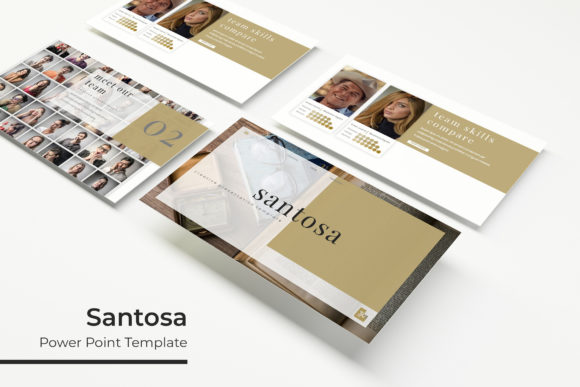
The preview images for Santosa show beautiful, high-quality photographs. Many buyers assume those images come with the download. They don’t. The product page clearly states “All photographs or pictures used in the preview are not included, they are intended for illustration purpose only.” When you open the template and find picture placeholders instead of actual photos, it’s easy to panic or feel shortchanged. But this is standard practice for premium templates—and actually a good thing, because it gives you freedom to use your own images without copyright worries.
The template uses drag-and-drop picture placeholders. You simply double‑click or drag your own photo into the placeholder, and it automatically crops and scales to fit the design. To avoid disappointment, prepare your own images (or choose royalty-free stock photos) before you start editing. Keep the placeholder dimensions in mind—usually widescreen 16:9—so your images don’t get stretched awkwardly. And remember: the pixel-perfect illustrations that are included (infographics, icons, section break visuals) are ready to use, so you’re not starting from zero.
Mistake 4: Resizing Graphics Without Respecting Aspect Ratios
Santosa’s illustrations are “resizable and editable” and “pixel-perfect,” which means you can scale them up or down without losing quality—if you do it correctly. The mistake people make is dragging the corners of an infographic or icon group unevenly, distorting the shape. A circle becomes an oval, icons look squashed, and the overall visual polish disappears.
Always hold the Shift key while resizing to maintain aspect ratio. For group elements (like an infographic made of multiple shapes), it’s even safer to select the entire group and resize using a corner handle while keeping Shift pressed. If you need to change proportions intentionally (e.g., making a icon slightly taller), do it by editing the individual shape, not by stretching the whole group. This way you preserve the handcrafted look that makes Santosa stand out.
Mistake 5: Forgetting to Download and Install the Required Fonts
The Santosa template uses specific fonts to achieve its clean, modern aesthetic—likely a sans-serif like Montserrat, Lato, or similar. The template includes a Readme file with a link to download the fonts for free. A typical mistake is opening the PPTX on a computer that doesn’t have those fonts, and PowerPoint substitutes them with whatever is available (often Times New Roman or Calibri). The result? Your slides look nothing like the preview, text overflows, and the whole layout shifts.
Before you edit anything, download the fonts listed in the Readme and install them on your machine. Also, if you plan to share the final PPTX file with others who may not have the fonts, consider embedding the fonts in the file (File > Options > Save > Embed fonts in the file). This ensures your presentation looks exactly as intended, no matter where it’s opened. Skipping this step is probably the number one cause of “my template broke” complaints.
Mistake 6: Ignoring the Section Break and Gallery Slides’ Potential
Santosa includes dedicated section break slides and gallery/portfolio slides. These are not just filler—they’re strategic tools for pacing your presentation. A common oversight is either deleting them because they seem empty, or cramming too much information into them, which defeats their purpose. Section break slides give your audience a mental pause and signal a transition. Gallery slides let you show multiple images or portfolio pieces in a clean grid.
Use them as designed. For a section break, place a bold title and maybe a short subtitle—resist the urge to add bullet points. For a gallery slide, keep the images consistent in aspect ratio and add short labels if needed. These slides help your presentation flow naturally, especially if you’re presenting a long deck with multiple segments. They also look great when you’re displaying work samples, case studies, or team photos.
What to Check Before You Buy or Start Using Santosa
Before you make any decision, confirm that the 150 slides (30 per template x 5 color variations) match your typical deck size. If you usually need 40 slides, you’ll have plenty to choose from. If you only need 10, the variety still helps you pick the best layouts—you don’t have to use every slide. Also, verify your version of PowerPoint. The files are provided in PPTX format and widescreen 16:9, which works with PowerPoint 2013 and later, but older versions may have compatibility issues. If you use Mac PowerPoint or PowerPoint Online, some features like master slides or custom fonts may behave differently. The Readme often covers these specifics—read it.
Also note that while the template is “resizable and editable,” vector illustrations may lose some detail if you scale them far beyond their original size. For most screens and projections, the pixel-perfect quality holds up beautifully. Just don’t expect to blow up a small icon to fill a full slide without some quality reduction—that’s true of any graphics.
Practical Advice for a Smoother Workflow
Once you have the fonts installed and a color variation selected, start by editing the title slide and the section breaks. Then build out your content slides using the handcrafted infographics and picture placeholders. Drag and drop your own images into the designated frames—don’t resize the placeholder itself unless necessary. Use the gallery slides to showcase projects, the portfolio slides for client work, and the infographic slides to present data visually rather than in dense tables. The “handcrafted infographic” tag means those visuals are designed to be both attractive and communicative; they’re not just decorations. Pair them with concise text and you’ll deliver a clear message.
One more tip: duplicate a few slide layouts you like and customize them for repeated use, rather than editing the original master slides you might want later. Always keep a backup of the original PPTX files (you get five separate files for each color variation). If something goes wrong, you can start fresh without re-downloading.
Final Thoughts
The Santosa Power Point Template is an impressive toolkit—150 slides, five premade colors, handcrafted infographics, gallery and portfolio sections, and all built on master slides for easy editing. But like any well‑designed tool, its value depends on how you use it. By avoiding the common mistakes discussed here—ignoring master slides, treating photos as included, resizing without care, skipping fonts, and misusing section breaks—you’ll not only save time but also create presentations that look intentional, professional, and tailored to your audience. Take a few minutes to understand the structure, read the Readme file, and prepare your assets in advance. Your future self (and your audience) will thank you.